The best wireless drawing tablets give artists more freedom to work without a cable while preserving the pressure control and shortcut access needed for precise digital drawing.
Our 2026 roundup compares ten models from Wacom, HUION, GAOMON, and XPPen across tablet size, wireless connectivity, stylus performance, shortcut controls, software support, and value.
Best 10 Wireless Drawing Tablets Picks for 2026
Best Overall

- Battery-free EMR pen with 4,096 pressure levels
- Bluetooth and USB-A connectivity
- Includes software access and training
Best For: Reliable everyday drawing, editing, and classroom use
Best for Shortcuts
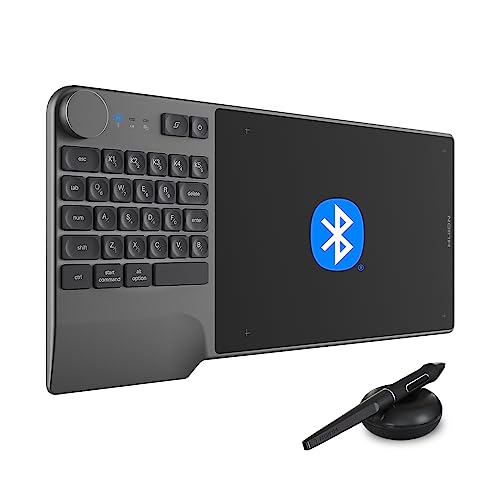
- Integrated 23-key keyboard and control dial
- 8,192-pressure battery-free pen
- Bluetooth 5.0 with up to 18 hours of use
Best For: Shortcut-heavy illustration, editing, and design workflows
Best for Controls

- 16,384-pressure battery-free pen with tilt support
- Dial and 8 programmable shortcut keys
- Bluetooth 5.0 and USB Type-C connectivity
Best For: Artists who prioritize pen sensitivity and tactile controls
Best Minimalist Design

- Spacious 10 x 6.25-inch drawing area
- Up to 24 hours of wireless use
- Clean, key-free design with mobile support
Best For: Portable, uncluttered drawing with a spacious surface
Best Wireless Starter Tablet
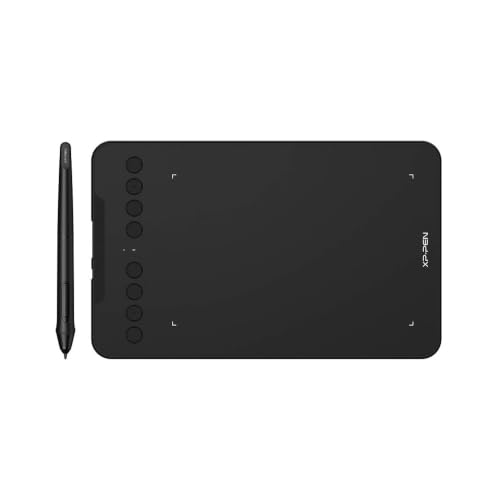
- Bluetooth 5.0 plus USB connectivity
- 16,384-pressure-level battery-free pen
- Eight customizable shortcut keys
Best For: Portable creative work, teaching, and remote workflows
Best Compact Wireless Value

- Bluetooth connectivity for PC and Mac
- Compact 6.0-by-3.7-inch active area
- Four customizable ExpressKeys
Best For: Small desks and straightforward drawing or photo editing
Best Large Drawing Area

- Spacious 10-by-6.25-inch work area
- 16,384-level battery-free stylus
- Eight customizable keys for either hand
Best For: Beginners and amateur artists who prioritize workspace
Beginner-Friendly Pick

- 8.5 x 5.3-inch active area
- Battery-free pen with 4,096 pressure levels
- Bluetooth and USB-C connectivity
Best For: Students, beginners, and everyday creative work
Large Workspace Pick

- 10 x 6.25-inch active area
- 16,384 pressure levels with 60-degree tilt
- Eight customizable shortcut keys
Best For: Illustrators, animators, and manga creators
Wireless Compact Pick
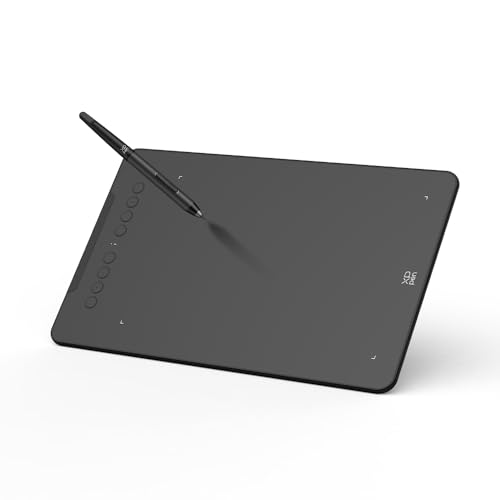
- Bluetooth 5.0 with up to 13 hours of use
- Battery-free pen with 16,384 pressure levels
- Eight shortcut keys in a compact design
Best For: Mobile creators and space-conscious workstations
Best Overall – Wacom Intuos Medium Bluetooth
The Wacom Intuos Medium is a dependable choice for anyone comparing wireless drawing tablets for illustration, photo editing, design, or document markup. Its battery-free EMR pen, Bluetooth connectivity, and four ExpressKeys provide a straightforward setup for students, teachers, and creators.
Best For: Creators who want a proven medium-size tablet with a natural pen feel and included software access.
Pros:
- Battery-free, pressure-sensitive pen with 4,096 levels
- Bluetooth or USB-A connectivity for flexible use
- Works with Mac, Windows, and Chromebook
- Includes creative software access and Wacom training resources
Cons:
- Only four physical shortcut keys
- USB-A cable connection may require an adapter with newer devices
The Intuos Medium emphasizes reliable drawing control over an abundance of built-in controls. It is a sensible all-purpose option for users who value Wacom’s established ecosystem and a simple wireless workflow.
Best for Shortcuts – HUION Inspiroy Keydial KD200
The HUION Inspiroy Keydial KD200 stands out among wireless drawing tablets by combining a drawing surface with a dedicated keyboard, dial, and programmable keys. Bluetooth 5.0, a battery-free stylus, and broad computer and Android compatibility make it suited to shortcut-heavy creative workflows.
Best For: Artists, editors, and designers who want extensive shortcut controls without relying on a separate keyboard.
Pros:
- Bluetooth 5.0 connection with up to 33 feet of range
- 23-key keyboard, dial, and 5 customizable press keys
- Battery-free pen with 8,192 pressure levels and 60° tilt
- Up to 18 hours of use after about 1.2 hours of charging
Cons:
- The integrated controls make the tablet less minimalist than basic models
- Wireless compatibility varies by operating system; check requirements before purchase
With its integrated keypad and dial, the KD200 is designed to reduce repetitive menu navigation. Choose it when productivity controls are as important as the drawing surface itself.
Best for Controls – GAOMON WH851 Bluetooth Tablet
The GAOMON WH851 is a feature-rich option in the wireless drawing tablets category, pairing Bluetooth 5.0 with a dial and eight customizable keys. Its battery-free pen supports 16,384 pressure levels and tilt detection, giving artists detailed control over line weight and creative tools.
Best For: Digital artists who want high pen sensitivity and plenty of physical controls for drawing, animation, and annotation.
Pros:
- 16,384 pressure levels with 60° tilt support
- Bluetooth 5.0 or USB Type-C wired connection
- Central dial plus 8 customizable shortcut keys
- Battery supports up to 18 hours of use
Cons:
- Operating-system support differs between wired and wireless use
- No built-in display, so users must look at a connected device while drawing
The WH851 is a strong fit for users who prefer tactile controls and fine pressure response. Its adjustable aspect-ratio options also provide flexibility for different screens and workflows.
Best Minimalist Design – HUION Inspiroy Frego Medium
The HUION Inspiroy Frego Medium offers a clean, uninterrupted surface for users seeking wireless drawing tablets without physical shortcut keys. Its 10 x 6.25-inch work area, Bluetooth connection, long battery life, and support for mobile devices make it a flexible choice for drawing on the go.
Best For: Artists who prefer a spacious minimalist canvas, portable design, and left- or right-handed use.
Pros:
- Large 10 x 6.25-inch working area with a clean surface
- Bluetooth or USB-C connectivity and up to 24 hours of use
- Battery-free 8,192-pressure pen with 60° tilt support
- Supports Windows, macOS, Android, Linux, iPhone, and iPad through supported apps
Cons:
- No physical shortcut keys on the tablet
- Some wireless compatibility is limited to newer operating systems
- Mobile iPhone and iPad use depends on supported apps such as HiPaint or ibisPaint
The Frego Medium prioritizes comfort and uncluttered workspace over built-in controls. It is especially appealing for artists who use keyboard shortcuts separately or want a tablet that travels easily.
Best Wireless Starter Tablet – XPPen Deco mini7W
The XPPen Deco mini7W is a compact option for shoppers comparing wireless drawing tablets for illustration, online teaching, note-taking, and photo work. Bluetooth 5.0 and the included USB dongle provide flexible connectivity, while its battery-free pen offers 16,384 pressure levels and tilt support.
Best For: Creators, teachers, and remote workers who want a portable wireless tablet with extensive shortcut customization.
Pros:
- Supports Bluetooth 5.0 and wired USB-C connections.
- Battery-free stylus includes 16,384 pressure levels and 60-degree tilt support.
- Eight customizable press keys can streamline frequently used commands.
- Works with Windows, Mac, Android, ChromeOS, and Linux.
Cons:
- The 7-inch active area is smaller than the drawing space on larger tablets.
- Wireless use requires Bluetooth or the included USB dongle.
Choose the Deco mini7W if wireless flexibility and broad device compatibility matter more than having a large canvas. Its compact format and programmable keys make it especially practical for mobile setups and teaching workflows.
Best Compact Wireless Value – Wacom Intuos CTL4100WLK0
The renewed Wacom Intuos CTL4100WLK0 is a space-conscious choice among wireless drawing tablets. It connects by Bluetooth to compatible Windows computers and Macs, includes a battery-free pen, and provides a 6.0-by-3.7-inch active area in a compact body.
Best For: Artists and photo editors working at smaller desks who want a compact Wacom tablet with wireless connectivity.
Pros:
- Bluetooth connection supports compatible Windows PCs and Macs.
- Compact design includes a relatively large 6.0-by-3.7-inch active area.
- Four customizable ExpressKeys provide quick access to shortcuts.
- Battery-free pen delivers 4,096 pressure levels.
Cons:
- Its pressure sensitivity is lower than the XPPen models in this roundup.
- The renewed condition may be less appealing to shoppers seeking a new product.
- Compatibility details are focused on Windows, macOS, and ChromeOS rather than mobile devices.
This Intuos is a sensible pick when desk space is limited and you prefer Wacom’s compact layout. Its four shortcut keys are less extensive than some alternatives, but they can cover common editing and drawing commands without crowding the workspace.
Best Large Drawing Area – XPPen Deco 01 V3
The XPPen Deco 01 V3 is a wired alternative for shoppers seeking wireless drawing tablets’ creative flexibility but prioritizing a larger work surface. Its 10-by-6.25-inch drawing area, 16,384-level battery-free stylus, and eight customizable keys give beginners and amateur artists room to build a workflow.
Best For: Beginners and amateur digital artists who want a spacious tablet for drawing, shading, note-taking, and design work.
Pros:
- Large 10-by-6.25-inch drawing area provides ample workspace.
- Battery-free stylus supports 16,384 pressure levels and up to 60 degrees of tilt.
- Eight customizable shortcuts support both right- and left-handed users.
- Supports Android 10 and later, Windows, macOS, ChromeOS, and Linux.
Cons:
- The supplied notes describe USB-C connectivity rather than Bluetooth or wireless operation.
- The larger surface may take more desk space than compact alternatives.
- Some listed operating-system requirements vary by platform and may require updates.
The Deco 01 V3 is the strongest fit here for users who value drawing room over cable-free operation. Its generous active area, beginner-focused setup, and included accessories make it a practical foundation for developing digital-art skills.
Beginner-Friendly Pick – Wacom One Medium
The Wacom One Medium is a practical choice for shoppers comparing wireless drawing tablets for digital art, photo editing, teaching, and everyday visual communication. Its 8.5 x 5.3-inch active area provides room to work, while the battery-free pen keeps setup simple.
Best For: Students, beginners, office work, drawing, photo editing, and teaching.
Pros:
- Bluetooth and USB-C connectivity support Windows, Mac, Chromebook, and compatible Android devices.
- Battery-free pen includes tilt recognition, 4,096 pressure levels, and two customizable switches.
- Pen shortcut buttons can be assigned to commands such as undo or copy/paste.
Cons:
- The 8.5 x 5.3-inch active area is smaller than the workspace on some larger tablets.
- Some Android setups may require a second USB-A adapter.
Choose the Wacom One Medium if you want a straightforward, established-brand tablet with broad compatibility and beginner-oriented controls rather than a large professional workspace.
Large Workspace Pick – XP-Pen Deco 01 V3
The XP-Pen Deco 01 V3 stands out among wireless drawing tablets for creators who prefer a generous working surface and extensive shortcut control. Its 10 x 6.25-inch active area, tilt support, and battery-free stylus suit illustration, animation, photo editing, and remote teaching.
Best For: Artists, manga and anime creators, students, educators, and users who want a large workspace.
Pros:
- Large 10 x 6.25-inch active area provides more room for drawing and shading.
- Stylus offers 16,384 pressure levels, 60-degree tilt support, and a battery-free design.
- Eight customizable shortcut keys and an ambidextrous layout support efficient workflows.
- Works with Windows, macOS, Android, Chrome OS, and Linux, plus popular creative software.
Cons:
- The listed connectivity is USB rather than Bluetooth wireless operation.
- The larger surface may be less convenient than a compact tablet for small bags or desks.
This model is a strong fit when workspace and shortcut access matter more than cable-free use. Its broad operating-system support also makes it versatile for classrooms, studios, and home setups.
Wireless Compact Pick – XP-Pen Deco mini7W V2
The XP-Pen Deco mini7W V2 is a compact option for shoppers seeking wireless drawing tablets that can move easily between a desk and mobile setup. Bluetooth 5.0 provides cable-free use, while the battery-free stylus, mobile mapping app, and eight shortcut keys support drawing, editing, and online teaching.
Best For: Mobile creators, students, remote workers, digital artists, and users with limited desk space.
Pros:
- Bluetooth 5.0 supports wireless use, with up to 13 hours of battery life per charge.
- Battery-free stylus provides 16,384 pressure levels and 60-degree tilt support.
- Mobile mapping adjustment is designed to reduce screen-ratio distortion on Android devices.
- Compact design includes eight customizable shortcut keys and broad system compatibility.
Cons:
- The 7 x 4.37-inch class workspace is smaller than the Deco 01 V3’s active area.
- Wireless operation requires charging after the stated battery life.
- iOS support is limited to ibis Paint according to the supplied notes.
Select the Deco mini7W V2 if portability and Bluetooth matter most. It offers useful creative controls in a small format, with wired operation available when you need continuous use.
How We Picked the Best Wireless Drawing Tablets
We focused on tablets that support wireless or Bluetooth connectivity and are designed for drawing, illustration, photo editing, animation, handwriting, or online instruction. We compared active drawing area, pressure sensitivity, stylus design, shortcut controls, compatibility, battery requirements, included software, and overall portability.
Because specifications vary by model and revision, check the manufacturer’s current compatibility details before buying. Some tablets use a USB receiver, while others rely on Bluetooth or offer both wired and wireless modes.
Quick Comparison
| Best For | What to Look For |
|---|---|
| Beginners and students | Reliable wireless connection, simple setup, included software, and a comfortable medium-size work area |
| Digital artists | Larger active area, high pressure sensitivity, accurate pen tracking, and customizable shortcuts |
| Portable work | Compact dimensions, low weight, Bluetooth or wireless receiver support, and a battery-free stylus |
| Shortcut-heavy workflows | Programmable express keys, a dial or keydial, and driver software with profile support |
Key Buying Factors for Wireless Drawing Tablets
Active Area and Size
The active area is the portion that responds to the stylus. A compact 7-by-4-inch tablet is easier to carry, while a medium 10-by-6-inch model generally gives artists more room for broad strokes. Larger tablets can feel more natural with a large monitor but take up more desk space.
Wireless Connection and Battery Life
Bluetooth is convenient for laptops and modern desktops, while a 2.4GHz receiver can offer straightforward plug-and-play pairing. Look for stable wireless performance, practical charging, and the option to use the tablet wired if the battery runs low. A battery-free pen reduces maintenance and avoids charging the stylus separately.
Pressure Sensitivity and Pen Feel
Higher pressure ratings can provide more control, but pen calibration, driver quality, tilt support, and comfortable nib resistance matter just as much. Artists should prioritize consistent light-pressure response and low perceived lag over headline numbers alone.
Shortcut Controls and Compatibility
Express keys, dials, and keypads can speed up zooming, brush-size changes, undo commands, and tool switching. Confirm support for your operating system and preferred applications, including drawing, editing, classroom, and online meeting software.
Who Should Buy Which Wireless Drawing Tablets?
Choose a compact XPPen or similar mini model if portability, a small desk footprint, and casual drawing are your priorities. These models suit students, travelers, and users who primarily work on laptops.
Choose a medium Wacom, HUION, GAOMON, or XPPen tablet for the best balance of control and portability. Medium sizes are a strong fit for illustrators, photographers, designers, and most home users.
Choose a model with a dial or extensive shortcut keys if you use keyboard commands constantly or want to keep your non-dominant hand on dedicated controls. This can be especially useful for painting, animation, and photo retouching.
Choose Wacom when established driver support, software bundles, and a familiar ecosystem matter most. Choose HUION, GAOMON, or XPPen when you want a broad selection of sizes and controls at a competitive price. Before ordering, verify the exact model number, wireless method, included accessories, and software terms.